Free public beta · Windows

Catch lightning
when it strikes.

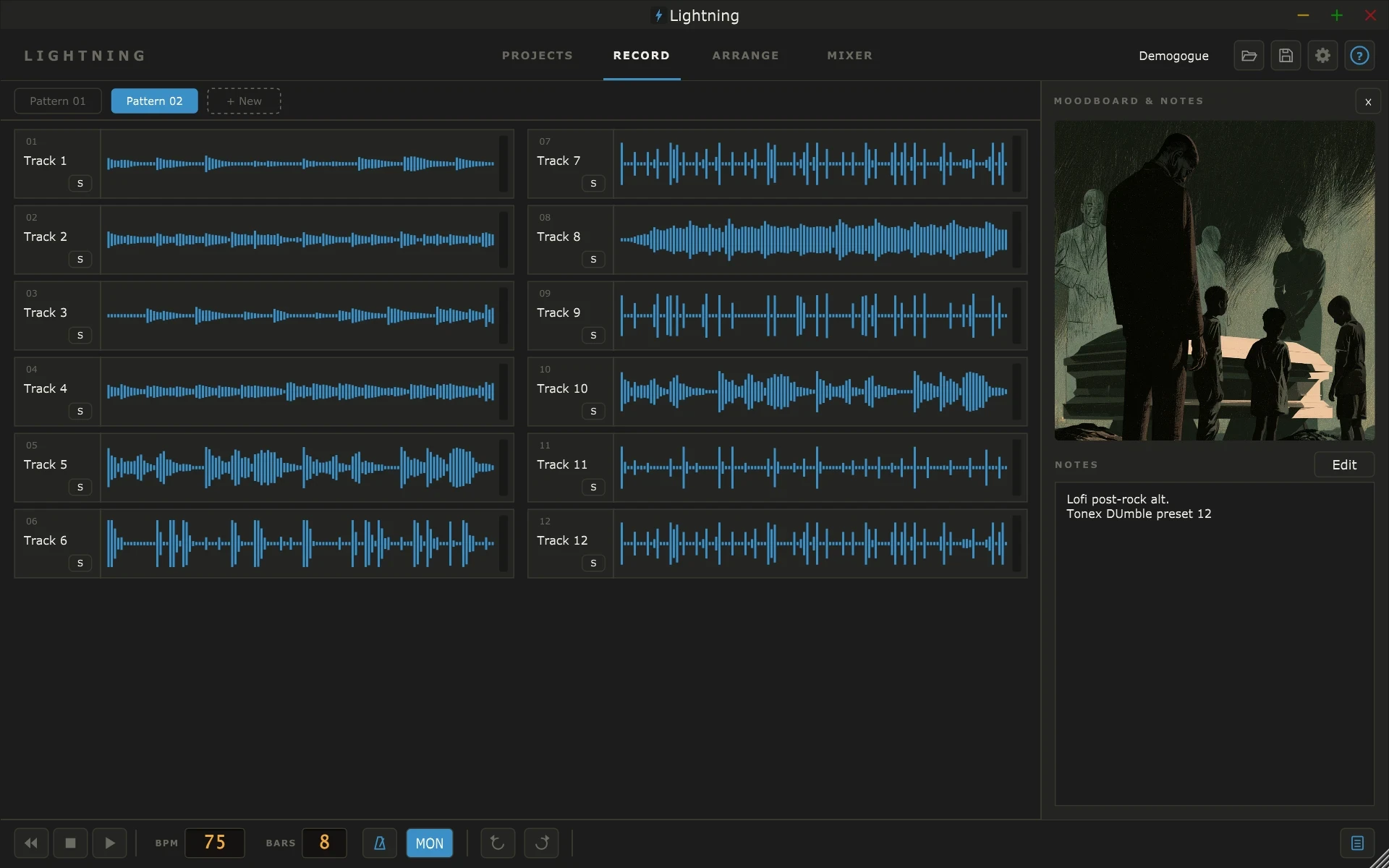
Lightning is a loop/phrase rapid idea recorder for guitarists. Quickly capture ideas, stack up to twelve layers, sequence them out in MPC-style patterns, then send the whole thing to Ableton Live for finishing up.

  • 12 audio tracks
  • 16 patterns
  • 1 tap recording
  • .als Ableton Live export
Lightning RECORD screen: twelve recorded loop tracks, pattern pills, BPM and BARS displays, and the moodboard and notes panel

Get Ideas Down Fast.

Lightning helps you record ideas, fast. It opens ready to record, quickly layer riff ideas in loop layers.

00:05

Open the app to your first loop recording

00:30

To a drum loop, bass and two guitar layers

CTRL+E

To a full Ableton Live session with each pattern as a scene

Why Lightning

Stack riffs to build song ideas.

01

A phrase loop recorder for guitarists

Pick a tempo and a length (4, 8 or 16 bars) and go! A deliberately simple workflow, so you can focus on laying down idea layers quickly.

  • Opens ready to record
  • Four-beat count-in and built-in metronome
  • Records stop on the bar line. You never edit a loop point.
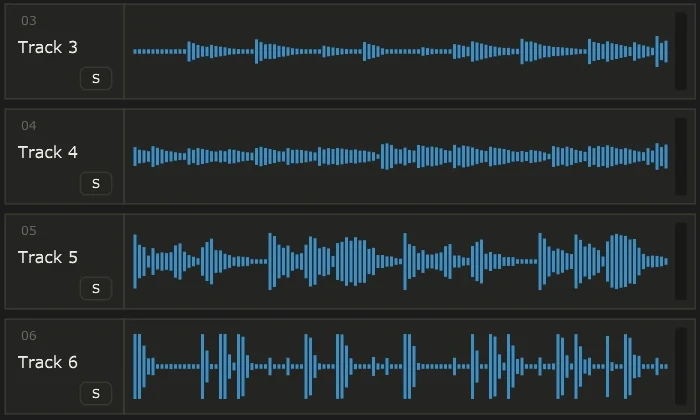
Four loop tracks in Lightning, each with its waveform and a solo button
02

Pattern based song sequencing

A pattern is a snapshot of tracks that are playing. Verse: drums, bass, rhythm guitar. Chorus: add the lead and the octave part. Bridge: strip it back to clean guitar. Make a pattern for each, flip between them live, and they always change on the loop boundary.

  • Up to 16 patterns per project
  • Switch at the loop end, on the next bar, or right now
  • Sequence patterns into a song in ARRANGE
VerseChorusBridge+ New
1Drums
2Bass
3Rhythm Gtr
4Lead
5Octaves
6Clean Gtr
03

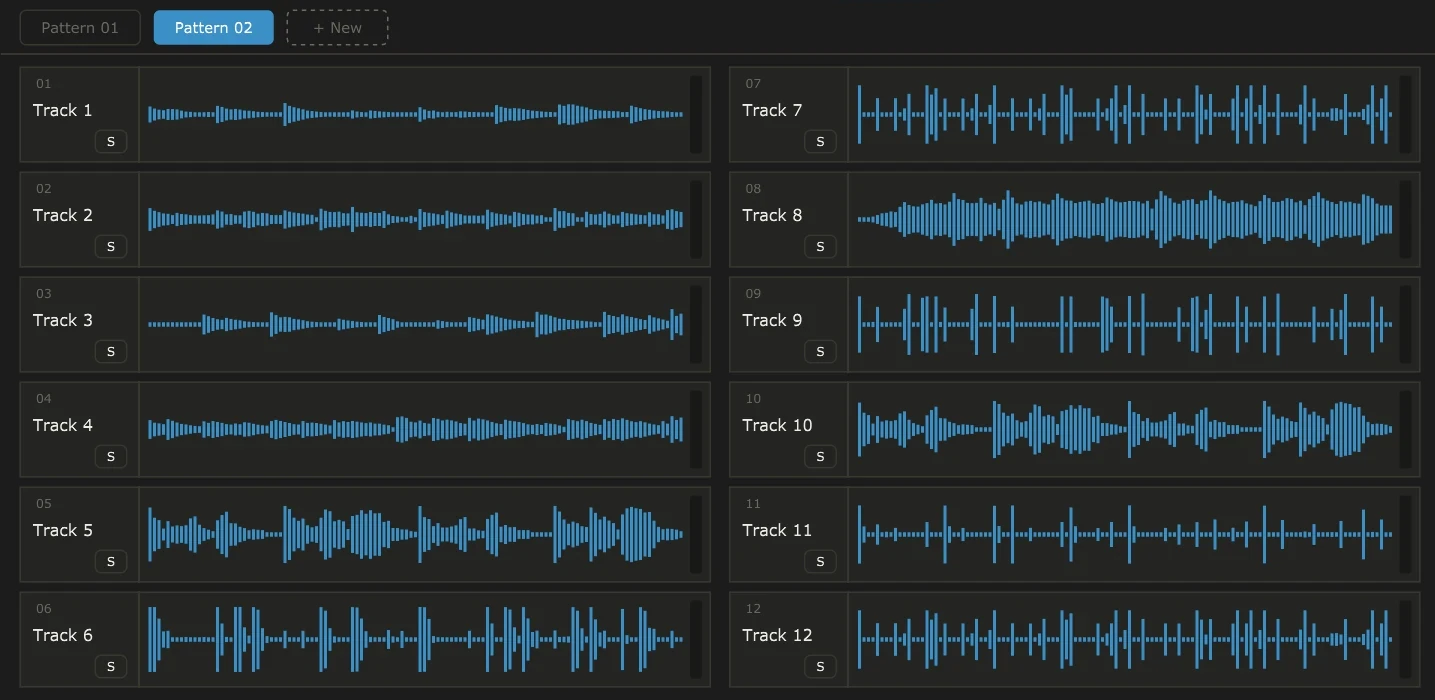
Twelve tracks, all on one screen

All twelve tracks fit on one screen in two columns, so you always see the whole idea. Each one has volume, two sends and inserts in the MIXER.

All twelve tracks of a Lightning project on one screen, in two columns
04

Loop, layer, repeat

While the loop plays, press another track's number. It arms and starts recording at the top of the next loop. Keep playing and keep stacking. There are no overdub modes or performance tricks: each layer is simply recorded to its own track, ready to mute, redo or export.

  • Arm while playing; recording starts on the next loop
  • Or stop, arm and hit Space for a fresh count-in
  • Undo and redo for everything
05

Drag and drop any WAV

Got a drum loop you love, or a bounce from last week? Drop the WAV onto a track. Lightning stretches it to fit your loop length with the pitch kept intact, so it locks to your tempo straight away.

06

Mouseless operation

Use keyboard shortcut that you can remap for rapid operations. The number row is your track grid: one press arms an empty track or mutes and unmutes a full one. Space plays, Alt+number queues a pattern. Run a whole session without touching the mouse.

1T1 2T2 3T3 4T4 5T5 6T6 7T7 8T8 9T9 0T10 -T11 =T12 SPACEplay / record
07

Polish/Mix in Ableton

When the idea is ready to finish, Lightning writes a real Ableton Live Set: each pattern becomes a scene, with your track names and tempo. The audio is copied alongside, so the set opens and plays straight away.

  • One scene per pattern, one clip per active track
  • Muted tracks leave empty slots, like you'd expect
  • Self-contained folder you can zip up and share
DrumsBassRhythmLeadOctaves
▶ Verse
▶ Chorus
▶ Bridge
▶ Outro

Try it now

Play with a simulated version in your browser

Press Space to play, 1–6 to mute and unmute tracks, and click a pattern to change the mix.

Keyboard ready
BPM77
BARS8

In the demo, patterns switch on the next bar; in Lightning you choose the end of the loop, the next bar, or right now.

The workflow

Four steps from riff to song

  1. 1

    Capture

    Set a tempo, press a number, hit Space. Count-in, record, loop.

  2. 2

    Layer

    Press the next number while it plays. Stack bass, leads and harmonies.

  3. 3

    Pattern

    Mute and unmute to find your verse, chorus and bridge. Save each as a pattern.

  4. 4

    Finish

    Arrange the patterns into a song, then export it to Ableton Live.

And also

Additional features to help you work faster

Solo any track

Every track has an S button. Solo the bass to check a part, or solo a take to hear exactly what you played.

Project library

All your ideas in one grid, with search, thumbnails and status (In progress, Completed, Archived). Nothing gets lost.

Templates

Save your go-to drum loop, track names and mixer setup as a template and start every idea from there.

Low-latency ASIO

Supports ASIO drivers, so what you play is what you hear, with input monitoring built in.

VST support

Add upto two send effects per track, and two inserts on the Input bus for Amp simulators and more!

Clean Folder structure

No obscure meta data or excess audio files. Loops are stored cleanly as wav files in the project folder and can be accessed directly anytime.

FAQ

Questions

Is it a looper? A DAW?

Neither, on purpose. Loopers are built for live performance and DAWs for finishing songs. Lightning is a rapid-idea recorder: it captures what you play as loopable phrases, lets you stack and try out parts, and hands the result to Ableton Live when you're ready to produce it.

Is it really free?

Yes. Lightning is free for the whole public beta. Sign up with your email and you'll get the download link straight away, plus news when new builds come out.

What do I need?

A Windows 10 or 11 PC and an audio interface for your guitar. An ASIO driver is recommended for the lowest latency. A macOS version is planned.

Do I need Ableton Live?

No. Lightning works on its own for capturing and arranging ideas. Ableton Live is only needed if you want to take a project further with the export. The export writes a Live 12 set.

Is it only for guitar?

It's designed around how guitarists write, but anything that goes into an audio input works: bass, keys, vocals, a mic'd ukulele. You can also drag in WAV loops.

Can I use my own plugins?

Each mixer channel has insert slots for VST3 effects, so you can put your amp sim in front of the recording.

Where do my files go?

Each project is a plain folder of WAV files and a project file in Documents/Lightning/Projects. They're your files, and you can copy, back up or share them.

Try Lightning Today!

Free during beta. Takes 30 seconds to sign up.

Download now!